
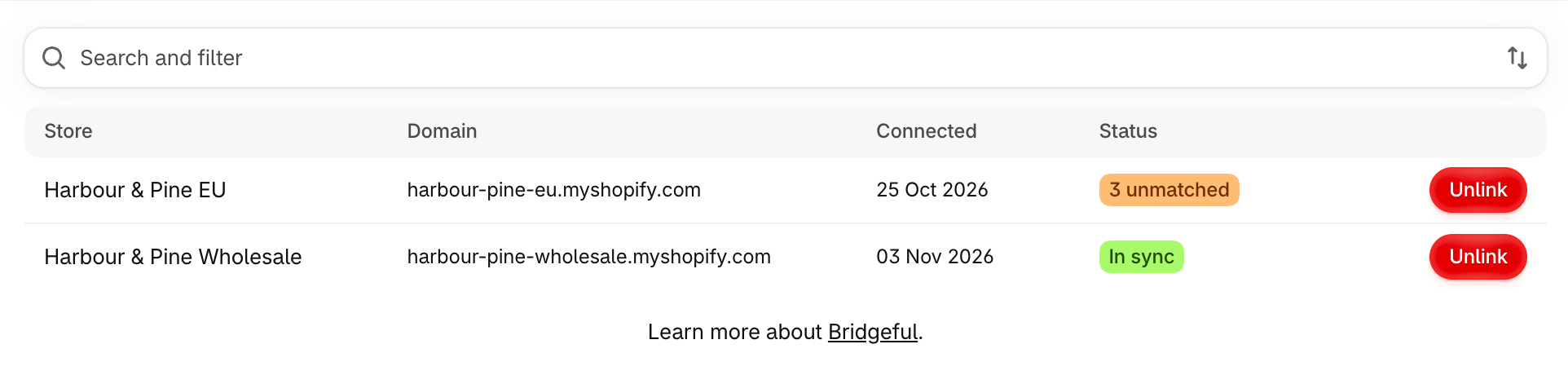
Stores lists every store linked to your main store, with when it was connected and its status. Search, filter by status and sort by name or connection date.
The Stores page listing connected stores with their status

Connect a store

  1. Choose Connect a store and enter the other store’s domain, for example eu-store.
  2. Install Bridgeful on that store if it isn’t already installed.
  3. On the other store, choose Connect.
Until then the store shows Waiting for install or Waiting to connect, with buttons to install it, open it, or cancel the invite. A store can only be connected to one main store, and a store can’t be a main store and a connected store at once. Your plan sets how many stores you can connect. When you reach the limit, Bridgeful offers the next plan up, or a form to tell us how many stores you need beyond ten.

A store’s page

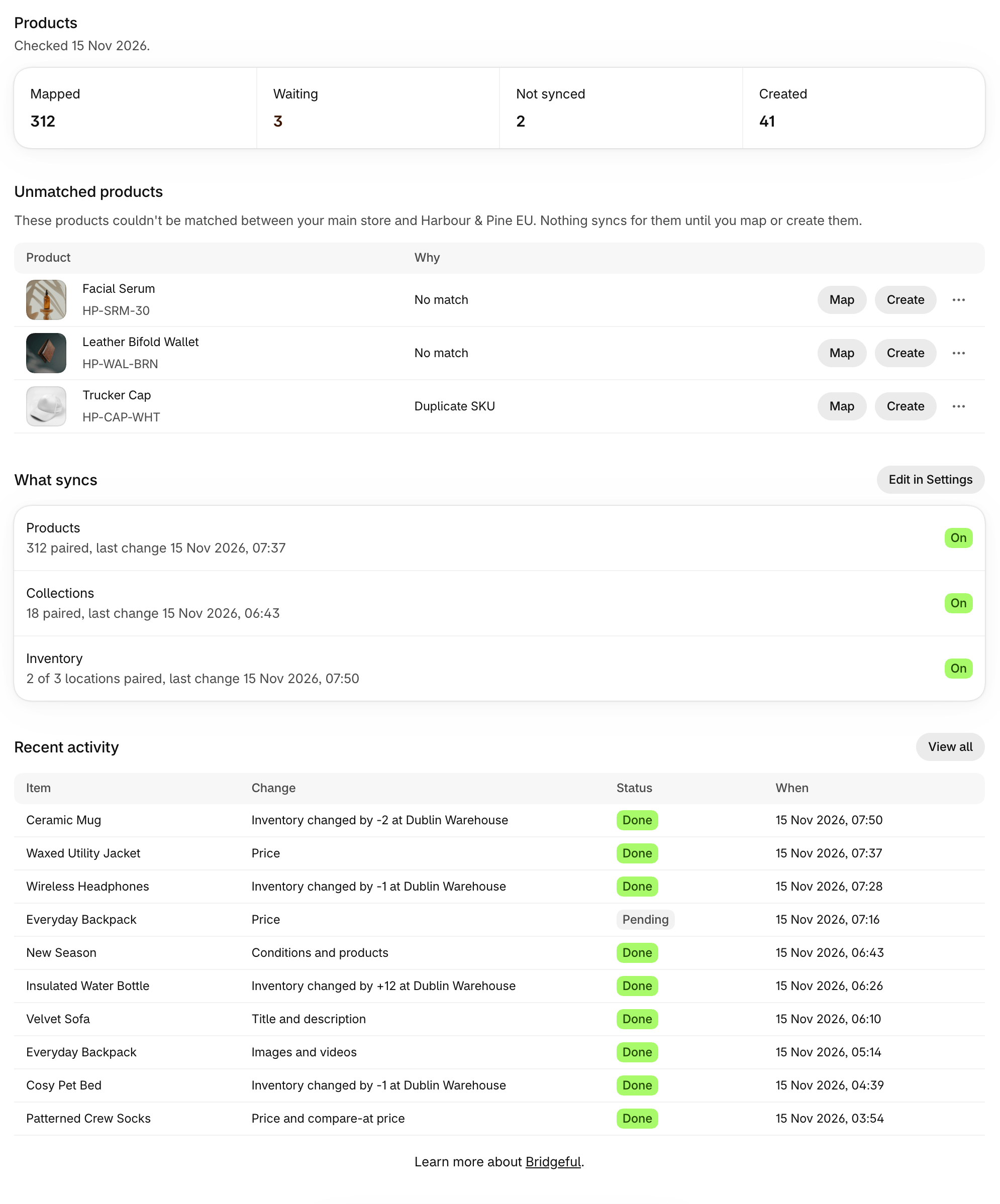
Open a store from the list to see:
  • What syncs with that store, and how many of its locations are paired. Change it with Edit in Settings.
  • Products: how many are mapped, waiting, not synced and created by Bridgeful.
  • Unmatched products: the products that couldn’t be matched, with Map, Create and Edit in Shopify. See matching.
  • Recent activity for that store.
A store's page with its product counts, unmatched products and what syncs
Choose Unlink on a store. Syncing between the two stores stops straight away, and nothing already in either store changes: every product, quantity, image and metafield stays exactly as it is. You can connect the store again later. When a store is linked, unlinked or paused, the other store’s primary contact gets an email.

Three or more stores

Your main store is the reference for every connected store. An inventory change on any store reaches every other store through the main store, and product and collection changes go from the main store to all of them at once.